Getting Started with ML.NET: Setting Up a Machine Learning Environment

No Comments »

By enabling systems to learn from data and make predictions or judgments without explicit programming, machine learning (ML) has transformed a number of sectors. Developers can embed machine learning models into their .NET applications using ML.NET, a Microsoft open-source machine learning framework. To make sure you have everything you need to begin your machine-learning adventure, we will walk you through the process of setting up a machine-learning environment with ML.NET in this post.

Installing Visual Studio

Installation of Visual Studio, a popular integrated development environment (IDE) for.NET developers, is the first step in starting our ML.NET adventure. A user-friendly interface and a variety of tools are provided by Visual Studio to make ML.NET development easier. How to install Visual Studio is as follows:

  • Access the most recent version of Visual Studio that is compatible with your operating system by visiting the official Visual Studio website
  • Run the downloaded installer and adhere to the prompts on the screen.
  • You will be prompted to choose the workloads you wish to install during the installation process. Select the workload “.NET desktop development” to access the ML.NET development-specific components.
  • Launch Visual Studio after the installation is finished to move on to the next action.

Setting Up ML.NET

After installing Visual Studio, let’s set up ML.NET:

  • Start Visual Studio, then choose “Create a new project.”
  • Run a search for “ML.NET” in the project template selection screen’s search field. Numerous ML.NET project templates are available, including “ML.NET Console App” and “ML.NET Model Builder.”
  • Based on your needs, select the suitable project template. Choose the “ML.NET Console App” template, for instance, if you wish to create a console application.
  • Click “Create” to start a new ML.NET project after entering the project’s name and location.

Installing ML.NET NuGet Packages

Installing the necessary NuGet packages is necessary in order to use ML.NET in your project. You can manage dependencies with ease using NuGet, a package management for.NET projects. Installing ML.NET NuGet packages is as follows:

  • In the Solution Explorer, right-click the project and choose “Manage NuGet Packages.”
  • Find “Microsoft.ML” in the NuGet Package Manager window and choose the most recent stable version.
  • To include the package in your project, click “Install”.
  • In addition, depending on your particular ML tasks or requirements, you might need to install other ML.NET-related packages. For instance, you can install the “Microsoft.ML.ImageAnalytics” package if you wish to work with image classification.
  • You are prepared to begin researching and leveraging ML.NET in your project after the packages have been installed.

Exploring the ML.NET Documentation

The ML.NET Documentation is a thorough source that provides instructions and examples for using ML.NET successfully. It addresses a broad range of subjects, such as model training, model evaluation, and model deployment. To aid developers in comprehending and making use of ML.NET’s capabilities, the documentation offers step-by-step instructions, code samples, and descriptions of fundamental concepts. Advanced subjects like model explainability, hyperparameter tuning, and transfer learning are also covered in the documentation. It provides advice on how to manage various data kinds, including structured data, text data, and image data, as well as how to pick the best algorithms and models for particular jobs.

Here are some tips for maximizing the ML.NET documentation:

  • Go to the official page of ML.NET documentation.
  • Learn how to use the documentation’s navigation and structure.
  • Start by reading the “Getting Started” section, which gives you an overview of ML.NET, explains its fundamental ideas, and walks you through creating your first ML.NET model.
  • For more information on specific subjects like data loading, data preprocessing, model training, and model evaluation, consult the documentation.
  • To learn more about ML.NET, make use of the code examples and sample projects offered in the documentation.
  • For updates, best practices, and actual use cases, keep a watch on the community resources and the official ML.NET blog.

Accessing ML.NET Samples

It is advised to examine the ML.NET samples offered by the community to get a better knowledge of its capabilities and how to utilize it successfully:

  • To access the ML.NET samples, go to the ML.NET GitHub repository
  • A variety of ML.NET samples arranged in many categories, including classification, regression, clustering, and more, may be found on the repository page. Select the category you are interested in.
  • You can find a selection of sample projects inside the category folder. Each project exemplifies a distinct machine-learning technique or circumstance. Select the sample that best suits your needs, or look through a variety of samples to learn about various ML.NET features.
  • Using the available choices, clone or download the example repository to your local computer. Cloning the repository will make it simple for you to pull updates and contribute to the project if you are familiar with Git.
  • Once you’ve downloaded the sample project to your computer, build and execute the project as directed. Setting up data sources, customizing parameters, or installing extra programs or dependencies can be required.

After the sample has been successfully executed, you can investigate the code and experiment with various parameters to better understand ML.NET and its potential.

You can learn how to use ML.NET in many areas, acquire practical insights into machine learning techniques, and use the community’s contributions to improve your own ML.NET projects by accessing ML.NET samples.

Wrapping Up

The first step in utilizing machine learning in your.NET apps is to set up a machine learning environment using ML.NET. You can prepare yourself for your ML.NET journey by installing Visual Studio, configuring ML.NET, perusing the documentation and samples, joining the community, and staying up to date with new releases. With the help of Microsoft’s vast support network and ML.NET’s user-friendly design, you can begin creating reliable machine-learning models and gaining insightful knowledge from your data. Happy coding!
Visual Studio Code With Rapidly Rising Rust – With a Simple Guide

No Comments »

Rust is a blazingly fast and memory-efficient programming language with no runtime or garbage collector. It is also one of the fastest-growing programming languages, is the subject of a new Visual Studio Code topic. Announced in the latest update to VS Code (the April 2022 update bringing it to v1.67), the new Rust in Visual Studio Code topic describes Rust programming language support in VS Code with the rust-analyzer. Rust has been gaining popularity and is seeing tremendous adoption amongst developers. This post will assist anyone wanting to develop Rust applications using Visual Studio Code (VS Code).

According to VS Code, “Rust is a powerful programming language, often used for systems programming where performance and correctness are high priorities,” reads the new topic. “If you are new to Rust and want to learn more, The Rust Programming Language online book is a great place to start. This topic goes into detail about setting up and using Rust within Visual Studio Code, with the rust-analyzer extension.”

The new topic comes amid a years-long rise in Rust popularity. For example, Rust made a big splash in the .NET-centric developer community several years ago when we reported “C++ Memory Bugs Prompt Microsoft to Eye Rust Instead.” That article referenced posts from the Microsoft Security Response Center (MSRC) titled “A proactive approach to more secure code” along with “We need a safer systems programming language” and “Why Rust for safe systems programming.”

There doesn’t seem to have been much progress since then on adopting Rust as a C++ replacement for systems programming, but Microsoft, which joined the Rust Foundation last year, posted documentation in February titled “Overview of developing on Windows with Rust.” Microsoft has also spearheaded Project Verona on GitHub, described as “a research project being run by Microsoft Research with academic collaborators at Imperial College London. We are exploring research around language and runtime design for safe scalable memory management and compartmentalization. The prototype here only covers the memory management aspects of the research.” Also, one of those MSRC 2019 posts noted that Rust topped Stack Overflow’s list of most loved languages for four years running, and its ascent continues today.

As far as the rust-analyzer extension for VS Code, its features include:

  • Codecompletion with imports insertion
  • Go to definition, implementation, type definition
  • Find all references, workspace symbol search, symbol renaming
  • Types and documentation on hover
  • Inlay hints for types and parameter names
  • Semantic syntax highlighting
  • A lot of assists (code actions)
  • Apply suggestions from errors

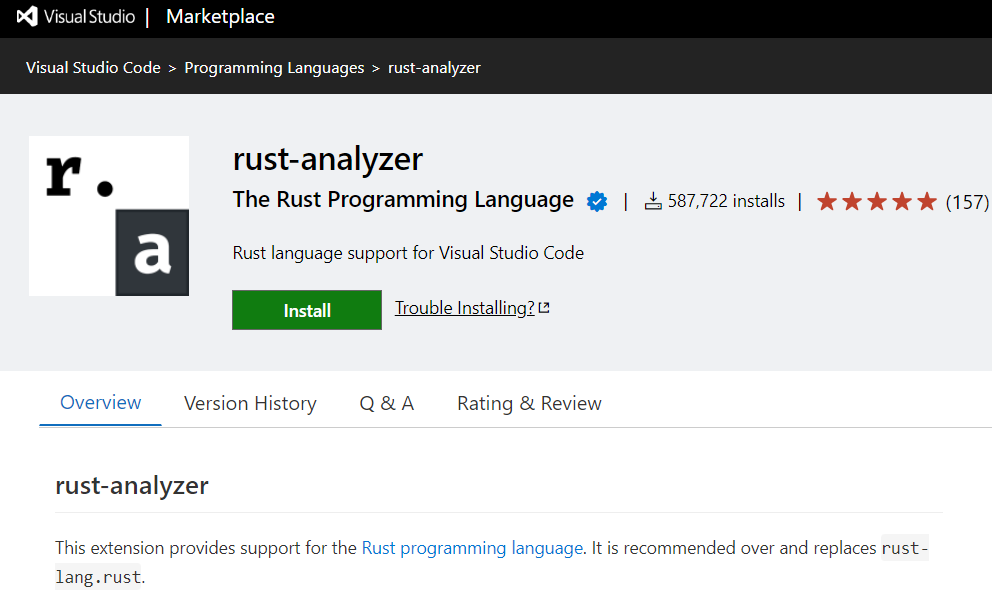
It has been installed more than 587,000 times, earning an average 4.9 rating (scale 0-5) from 157 developers who reviewed it.

Installation Process

Install Rust

First, you will need to have the Rust toolset installed on your machine. Rust is installed via the rustup installer, which supports installation on Windows, macOS, and Linux. Follow the rustup installation guidance for your platform, taking care to install any extra tools required to build and run Rust programs.

As with installing any new toolset on your machine, you’ll want to make sure to restart your terminal/Command Prompt and VS Code instances to use the updated toolset location in your platform’s PATH variable.

Install the rust-analyzer extension

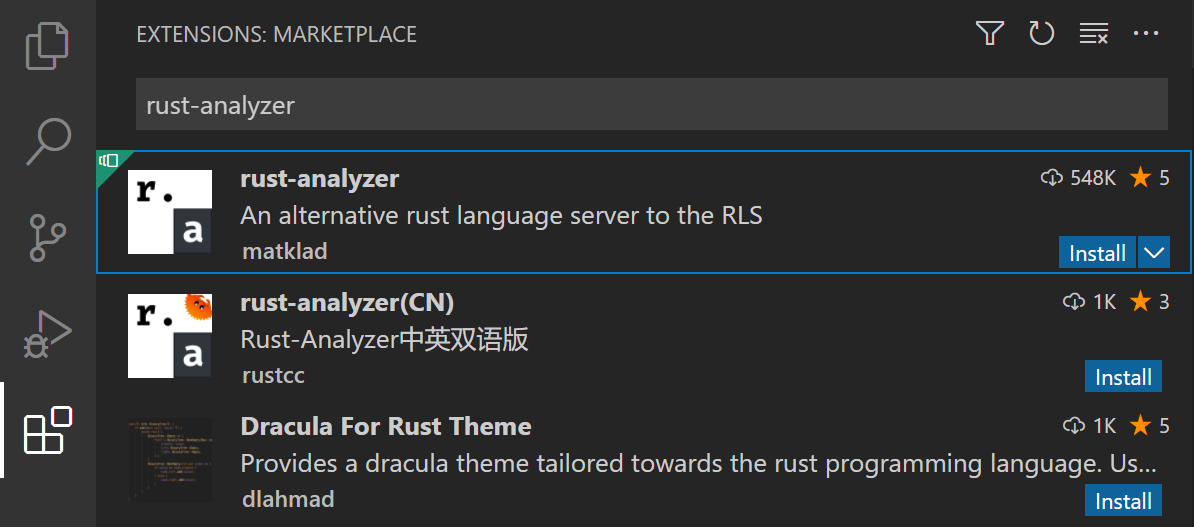
You can find and install the rust-analyzer extension from within VS Code via the Extensions view (Ctrl+Shift+X) and searching for ‘rust-analyzer’. You should install the Release Version.

rust-analyzer extension in the Extensions view

To discuss more of rust-analyzer features or to learn more about this topic you can refer to the extension’s documentation at https://rust-analyzer.github.io.

Check your installation

If you complete the above instruction you will be good to go and start coding in Rust, but after installing Rust, you can also check whether everything is installed correctly or not by opening a new terminal/Command Prompt, and typing:

rustc –version

Which will output the version of the Rust compiler. If you run into problems, you can consult the Rust installation guide. You can keep your Rust installation up to date with the latest version by running:

rustup update

There are new stable versions of Rust published very 6 weeks so this is a good habit. When you install Rust with rustup, the toolset includes the rustc compiler, the rustfmt source code formatter, and the clippy Rust linter. You also get Cargo, the Rust package manager, to help download Rust dependencies and build and run Rust programs. You’ll find that you end up using cargo for just about everything when working with Rust

Local Rust documentation

When you install Rust, you also get the full Rust documentation set locally installed on your machine, which you can review by typing rustup doc. The Rust documentation, including The Rust Programming Language and The Cargo Book, will open in your local browser so you can continue your Rust journey while offline.

Next steps & Summary

This has been a brief overview showing the rust-analyzer extension features within VS Code and the installation process for Rust in VS Code. For more information, see the details provided in the Rust Analyzer extension User Manual, including how to tune specific VS Code editor configurations.

To stay up to date on the latest features/bug fixes for the rust-analyzer extension, see the CHANGELOG. You can also try out new features and fixes by installing the rust-analyzer Pre-Release Version available in the Extensions view Install dropdown.

If you have any issues or feature requests, feel free to log them in the rust-analyzer extension GitHub repo.

If you’d like to learn more about VS Code, try these topics:

Free Developer Tools

4 Comments »

Following are some simple but useful FREE tools for software developers. Each tool is freely distributable and includes the original C# source code so you can modify the tool to your needs. These tools are not supported. Enjoy!

Color Gadget

Select a .NET KnownColor or other color, copy RGB and hex values to the clipboard.

Free Download

Guid Generator

Generate a new globally-unique ID and copy it to the clipboard.

Free Download

Hex Converter

Quickly convert between hex and decimal numbers.

Free Download

Shortcut Replace

Search/replace the path and working directory in a collection of shortcut (.lnk) files.

Free Download

Visual Studio Toolbox Installer

Console program that installs/removes tabs and custom controls and components in the Visual Studio .NET Toolbox.

Free Download

Window Watcher

Shows the form and client bounds of the active window.

Free Download

Visual Studio 2008 and .NET 3.5 Released

No Comments »

Microsoft has released Visual Studio 2008 and .NET Framework v3.5. These upgrades enable .NET software developers to rapidly create more secure, manageable, and reliable applications and take advantage of new features found in Windows Vista and Microsoft Office 2007.

Read the rest of this entry »

Microsoft to Share .NET Framework Code

1 Comment »

Microsoft has announced that it will release the source code for the .NET Framework with .NET version 3.5 later this year. Microsoft will release the code under its Reference License. This is essentially “read-only mode,” meaning that you can view the source code for reference and debugging, but you cannot modify or distribute the code. This is Microsoft’s most restrictive shared-code license and should not be confused with “open source” code such as Linux and the projects on SourceForge.Net. Read the rest of this entry »

Adding Assemblies to the Visual Studio “Add Reference” Dialog

8 Comments »

When you attempt to add an assembly reference to a Visual Studio project, the Add Reference dialog appears with a list of registered global assemblies in the .NET tab:

Add Your Assembly to Visual Studio

Unfortunately, adding your assembly to the Global Assembly Cache (GAC) does NOT make it automatically appear in the Visual Studio list of installed assemblies; you must add your assembly manually as follows:

Read the rest of this entry »

.NET Magazines Compared

2 Comments »

Developers for the Microsoft .NET platform are blessed to have three high-quality .NET magazines available to them: CoDe Component Developer Magazine, MSDN Magazine, and Visual Studio Magazine.

Why would a tech savvy software developer want to read a paper magazine when so much information is available online? Well, some of us “old timers” still appreciate the fresh smell and slick feel of a high-gloss monthly. Also, magazine articles are often produced by professional writers who explain subjects in greater clarity and detail than one may find on the Web. And there are times when a developer may not be connected, such as when riding the train, sitting in a meeting, or eating lunch.

Read the rest of this entry »

Embedded Image Resources

15 Comments »

If you use images in a .NET application, chances are you will find it more convenient to embed those images as resources in your project, rather than leaving them as separate files and trying to locate and load the images from disk when the application runs.

Read the rest of this entry »

Visual Studio “Orcas” and .NET 3.5 Beta Available

No Comments »

Microsoft has released a beta version of the next major release of Visual Studio and the .NET framework.

Visual Studio “Orcas” will enable developers to write programs that can run on Windows Vista, Longhorn Server, Office 2007 and the Web. The .NET Framework v3.5 will provide better support for Web 2.0 and AJAX applications. Microsoft has been planning to release Orcas this year, but a corporate VP recently told ZDNet that it may not happen until 2008.

Read the rest of this entry »